
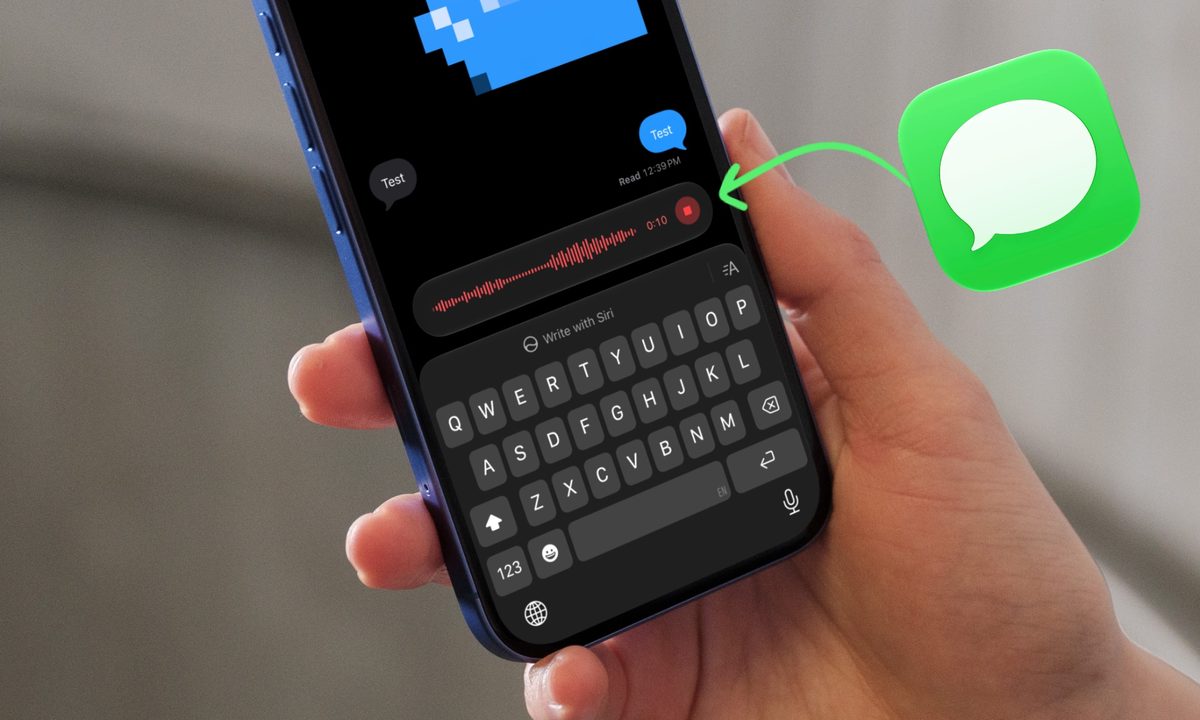
If you have ever fat-fingered the record audio button in Messages and sent an awkward, unintended voice note, you know the specific kind of panic that follows. I have done it more times than I’d like to admit, and if it weren’t for the “Undo Send” feature, I would’ve been in some really embarrassing situations.
It usually happens when invoking the keyboard by tapping inside the text field as my fingers accidentally brush against that little recording icon. Or sometimes an accidental tap while I’m waiting for a reply ends up sending a voice recording without me even realizing it.
Thankfully, iOS 27 finally gives us a way to make this problem disappear for good.
Why does this keep happening in the first place?
If you have ever wondered why this button seems to get hit so often, it comes down to two things. Firstly, the record audio icon sits right next to the text field, exactly where your thumb naturally lands.
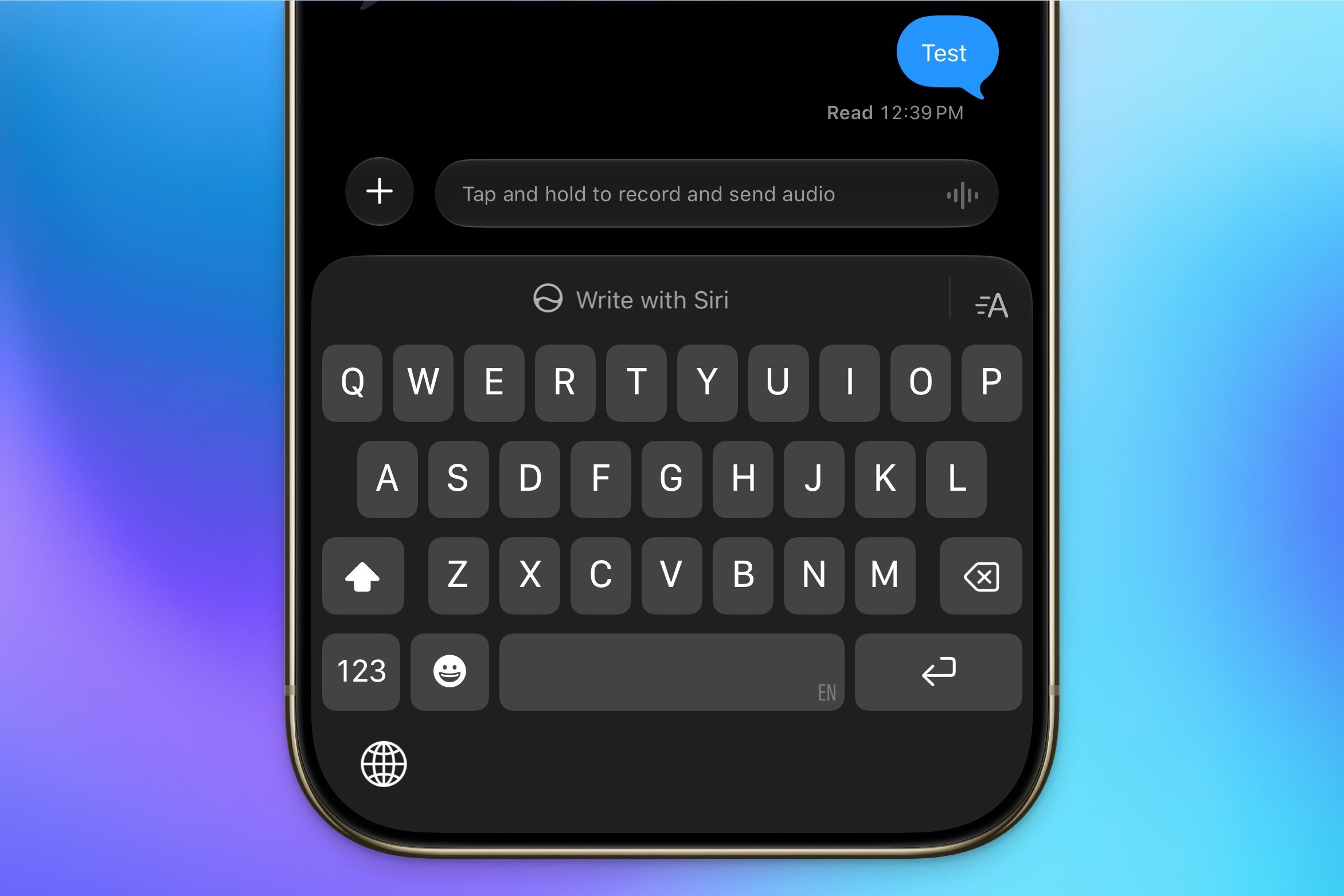
Secondly, it’s the same place as the Send button, so our muscle memory also makes it easier to hit. In iOS 27, I have noticed that now you need to tap and hold to start the recording, which is already better than iOS 26, which started the audio message with just a tap.
But just to be sure it never happens, I still prefer to remove the audio message button entirely. Here’s how you do it.
How do you turn off the record audio button?
Apple has added a simple toggle in the Messages settings that lets you control what shows up on the right side of your text field. To access it:
Step 1: Launch the Settings app on your iPhone and scroll down to the bottom.
Step 2: Tap on Apps and then on Messages to open the Messages settings.
Step 3: Scroll down and tap on the “Show in Text Field” settings.
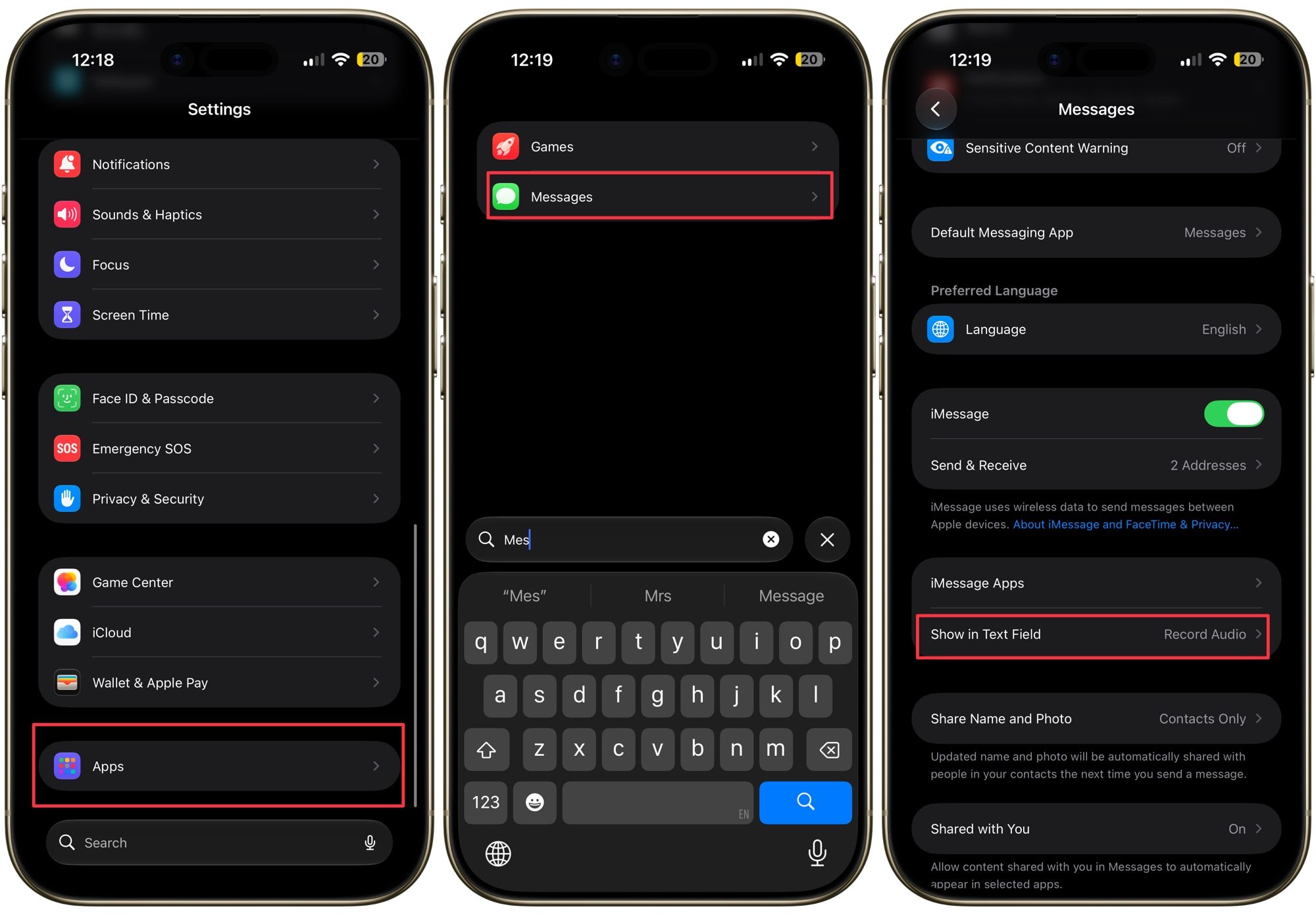
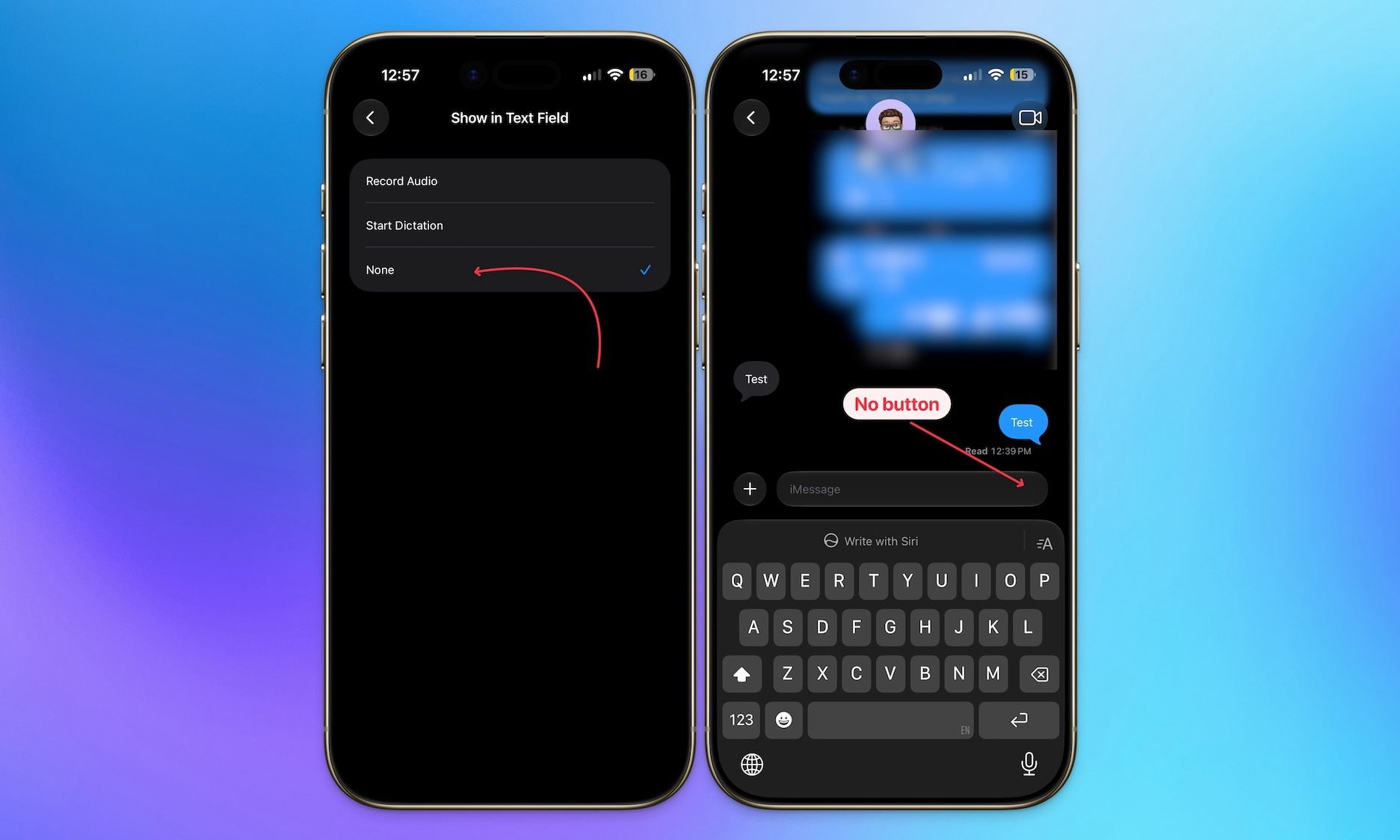
You will be greeted with three choices: Record Audio, Start Dictation, or None. Select None to remove the audio recording button entirely, so there’s nothing left for your thumb to accidentally hit.
Should you pick dictation instead?
If you still want quick access to voice input but don’t want the audio recording button anywhere near your keyboard, switching to Start Dictation is a good middle ground. Dictation has become much better with the new Siri AI, so it’s a solid choice. You get a way to dictate messages without the risk of firing off an unplanned voice recording to whoever you were texting.
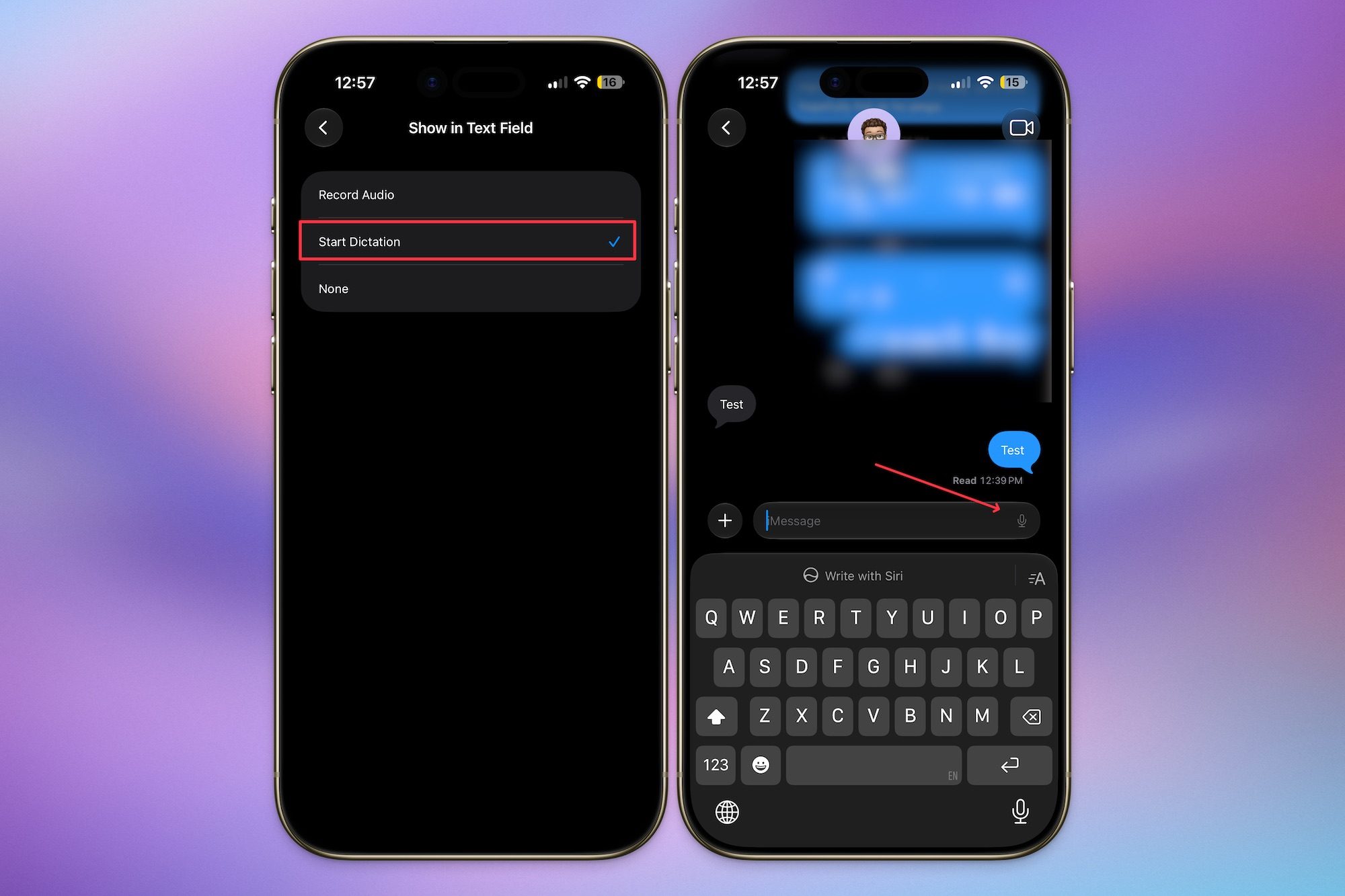
For me, though, None is the way to go. I rarely use voice messages anyway, and the dictation button is present at the bottom-right of the keyboard if I need it. Removing the button altogether means I no longer have to worry about any accidental voice messages.
It’s a small change, but it’s the kind of quality-of-life fix that makes a real difference once you know it exists. If you have ever sent an accidental voice message and cringed immediately after, do yourself a favor and update this setting today.


